
You’ve got the water filtration system. The solar panels. The food stores. Maybe even a backup power system for your electronics. But here’s a question most people building resilience never ask: what happens to your knowledge when the internet goes dark?
Internet outages aren’t hypothetical. They’re routine. In 2024 alone, major ISPs reported over 1,400 significant outages across the US. A single severed fiber line can knock an entire region offline for days. And when that happens, every medical reference, survival guide, technical manual, and navigation tool you’ve ever relied on through a browser simply vanishes.
Your bookshelf can only hold so much. Your printed manuals go out of date. And your phone’s offline capabilities are, frankly, pathetic without a cell signal.
There’s a better answer — and it fits on your desk.
What Is Project N.O.M.A.D.?
Project N.O.M.A.D. (Networked Offline Media And Data) is a free, open-source knowledge server that runs entirely on your own hardware. No subscriptions. No cloud accounts. No internet required after initial setup.
Think of it as a self-contained library, encyclopedia, AI assistant, and toolkit — all accessible through your web browser, all running locally. It was built by Crosstalk Solutions, and the GitHub repo now sits at roughly 39,000 stars, with an active community of builders, preppers, and privacy advocates behind it.
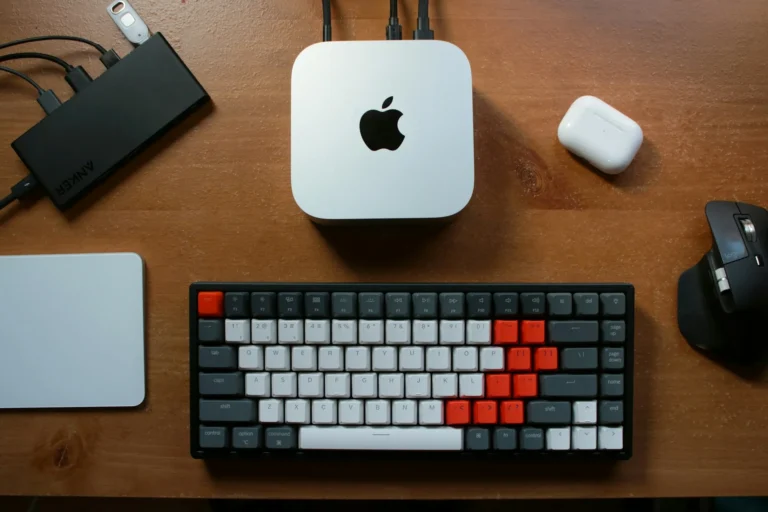
The project was originally designed for Linux, but a macOS community port means your Mac mini M4 — the one sitting on your shelf right now — can become a full offline knowledge station.
We tested it. Here’s exactly what we found.
What You Get: The Full Toolkit
N.O.M.A.D. bundles ten tools into a single interface called the Command Center. Everything launches from one dashboard — no command-line juggling required.
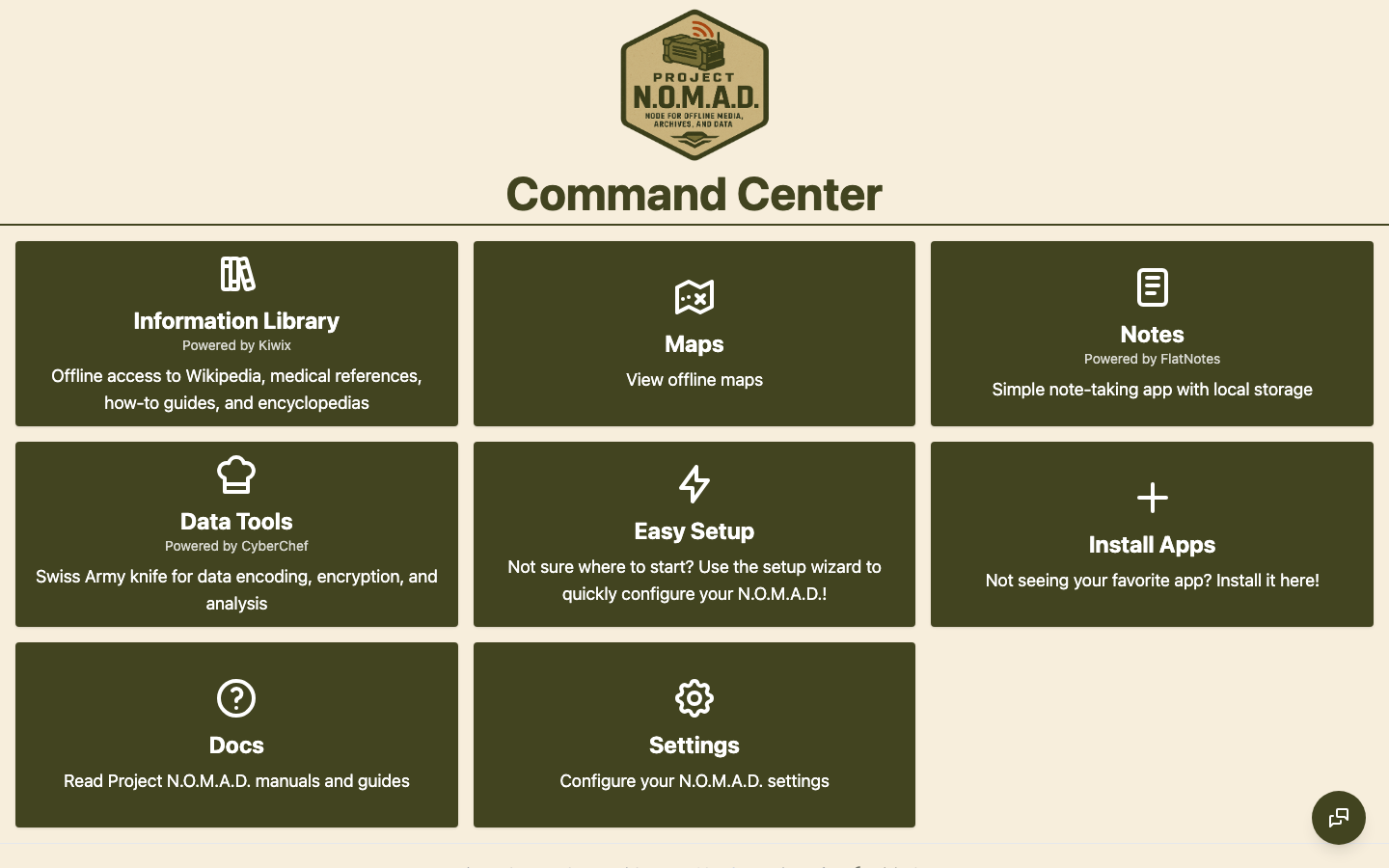
Here’s what’s inside:
- AI Chat & Knowledge Base (Ollama + Qdrant) — A local AI assistant that runs entirely on your hardware. Ask it questions, feed it your own documents, get answers. No OpenAI. No API keys. No data leaving your machine.
- Offline Wikipedia (Kiwix) — The full Wikipedia archive, searchable and browsable without internet. Medical references, survival guides, technical documentation, historical records — all of it, stored locally.
- Medical References (Kiwix) — First aid guides, health databases, and survival medicine resources available through the same offline library system.
- Education Platform (Kolibri) — Khan Academy-style courses with progress tracking. Math, science, reading — useful for homeschooling families or anyone wanting structured offline learning.
- Offline Maps (ProtoMaps) — Download regional maps for search and navigation. No phone signal required. No Google. Just your local map tiles and a browser.
- Data Tools (CyberChef) — Encryption, encoding, hashing, and data analysis. If you need to decode a message, convert file formats, or verify a checksum offline, this handles it.
- Note-Taking (FlatNotes) — A clean, local markdown notes system. Keep your plans, inventories, and documentation organized without any cloud sync.
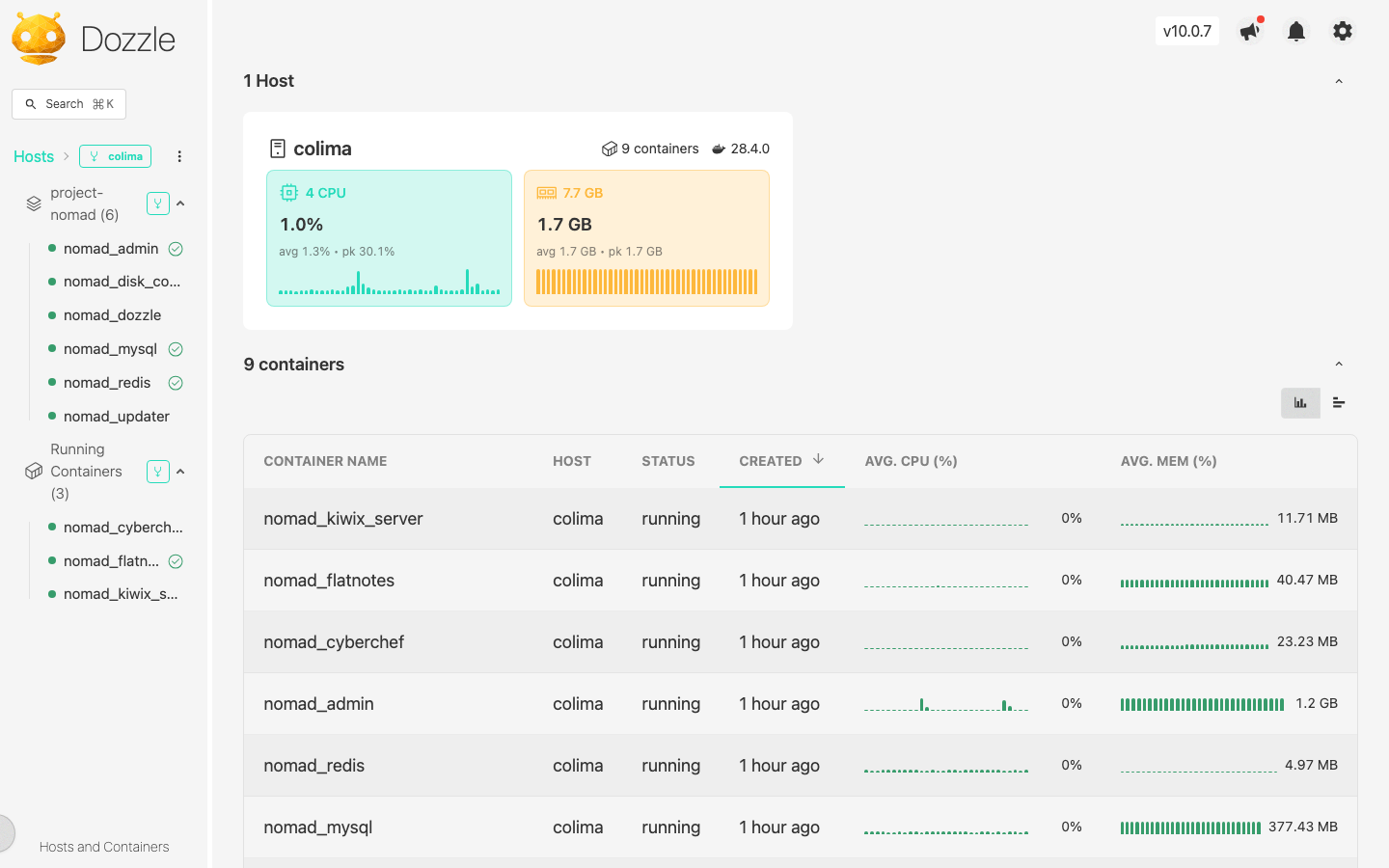
- System Monitoring (Dozzle) — Live container logs and system health. See exactly what’s running and catch issues before they become problems.
- Offline Translation (Supply Depot) — Translates Information Library content between languages entirely on your hardware. Useful for multilingual households, or for working through foreign-language references once you’re offline.
- Drug Reference — A dedicated dashboard tile backed by a drug reference dataset, so medication lookups stay available when the internet doesn’t.
Why the Mac mini M4 Is a Surprisingly Good Fit (Or That Old Mac on Your Shelf)
You might assume an offline knowledge server needs a big Linux box or a rack-mounted NAS. It doesn’t. If you’ve got an old Mac mini gathering dust — whether it’s an M1, M2, M3, or M4 — you’re closer to building a resilient knowledge infrastructure than you think.
Beyond Mac mini, this also works on older MacBook Pros, iMacs, and Mac Minis from recent years. Basically, any Apple Silicon Mac or Intel Mac running Docker can run N.O.M.A.D.
The Mac mini M4 brings a few things to the table that matter for this use case:
Unified memory architecture. The M4’s 16 GB of shared memory means both CPU and GPU tasks draw from the same fast pool. For running a local AI model alongside Wikipedia searches and map lookups, this is efficient — no memory bottleneck between components.
Mostly native ARM64. The service containers (MySQL, Redis, Kiwix, CyberChef, FlatNotes, Dozzle) run natively on Apple Silicon. One exception: the management/admin container is published for x86-64 only, so Docker runs it under Rosetta emulation. On an M4 it makes no practical difference, but Rosetta needs to be enabled — see the update note under Installation below.
Low power draw. The Mac mini M4 idles at roughly 5-7 watts. Pair it with a small solar setup and a battery bank, and you’ve got an offline knowledge server that can run for days without grid power.
Small footprint. It’s 5 inches square. It fits in a go-bag. It fits on a shelf next to your radio equipment. It doesn’t demand a dedicated server room.
What We Tested (And What You Can Adapt)
Our testing setup:
- Hardware: Mac mini M4 with 16 GB RAM (but this also works on older Macs, MacBook Pros, iMacs — basically any recent Apple Silicon or Intel Mac)
- Storage: We used 25 GB for the baseline install with one 7B AI model
- Setup: Docker Desktop, internet-only during initial installation
- Time: 40 minutes from clone to Command Center running
Important caveat: This article covers the baseline minimal setup. We didn’t download the full Wikipedia archives (which can be 80-100+ GB), we didn’t configure advanced features in every tool, and we didn’t deeply explore each app’s full capabilities. The goal was to verify N.O.M.A.D. works on Mac hardware and to give you a working foundation.
If you’ve got an old Mac sitting idle — even with just 8 GB RAM — you can run a functional N.O.M.A.D. setup. If you want full offline capabilities (complete Wikipedia, large AI models, extensive map coverage), budget 250+ GB storage and expect some trade-offs between concurrent feature use and system resources.
If you’ve bought a Mac mini thinking it would be perfect for home server projects but haven’t found the right use case yet, this is it. A resilient knowledge server is a genuinely useful thing to have running in your home or workshop.
Got questions about specific tools or want deeper dives? Leave a comment below. If there’s demand, we’ll create follow-up articles exploring individual features in detail — Ollama fine-tuning, building a personal knowledge base, advanced map configurations, Dozzle container management, and more.
Installation: Step by Step
We ran this on a stock Mac mini M4 with 16 GB RAM. Every step below is verified working.
Update (September 2026): The N.O.M.A.D. management/admin container is built for x86-64 (amd64) only — the upstream project builds its images on amd64 runners with no ARM variant, including the September 2 (v1.34.1) release. As of v1.35.0 (September 29), there is still no ARM build of the admin image. On Apple Silicon, make sure Docker Desktop’s Rosetta emulation is enabled (Docker Desktop → Settings → General → “Use Rosetta for x86/amd64 emulation on Apple Silicon” — it’s on by default). If you see “platform conflicts” or “no matching manifest for linux/arm64” errors while pulling the management containers, check that setting, or run export DOCKER_DEFAULT_PLATFORM=linux/amd64 in Terminal before the installer. Everything else in the stack runs native ARM64.
Update (October 2026): Version 1.35.0 landed September 29, and most of the changes touch the AI side. Chat now accepts local vision attachments, so you can hand it photos or document images. RAG answers now cite the source document’s name and date instead of leaving you to guess where an answer came from. The native Ollama path does real prompt budgeting and context-window sizing, and a new chat sampler offers four response-style profiles. The dashboard accepts user-added link tiles, the Kiwix library is browsable in any language (not just English), maps gets full marker management with custom icons, colors, and search/sort, and knowledge bases get per-file toggles plus collection grouping. The stack’s Ollama is now 0.33.3. Windows users also get an official WSL2 install guide at projectnomad.us/install/wsl2; macOS still runs through the community fork.
1. Install Docker Desktop
If you don’t already have Docker, download it from docker.com. Install it, launch it, and make sure it’s running (you’ll see the whale icon in your menu bar).
2. Clone the macOS Fork
Open Terminal and run:
git clone https://github.com/aaronbailey/project-nomad-macos.git
cd project-nomad-macos
3. Run the Installer
sudo bash install_nomad.sh
The script detects that you’re on macOS and configures everything accordingly. It pulls Docker images, sets up containers, and configures self-hosting your emailing. On a decent internet connection, this takes 10-15 minutes.
4. Access the Command Center
Once the installer finishes, open your browser and navigate to:
http://localhost:8080
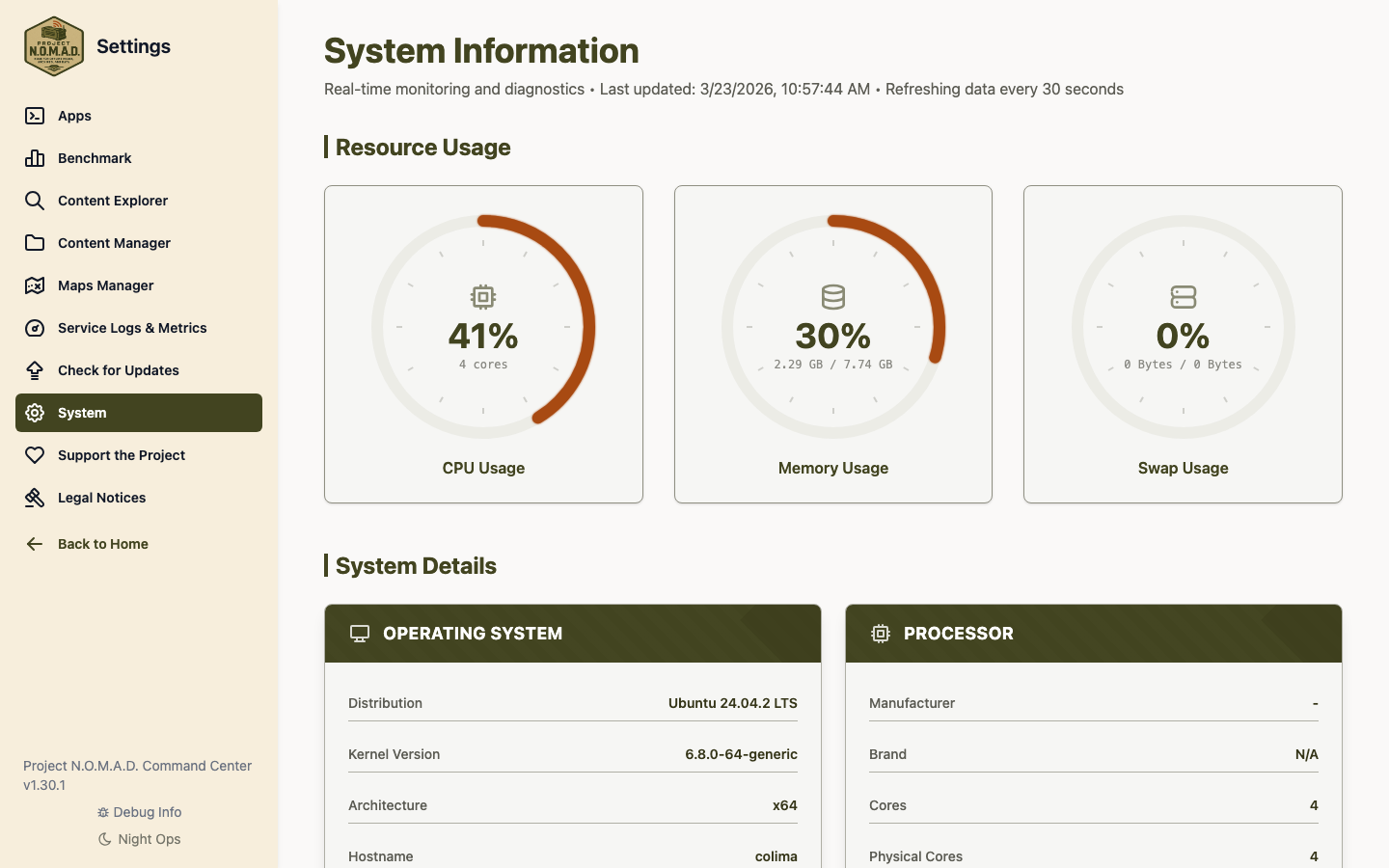
You’ll see the Command Center dashboard — your single control panel for everything.
5. First-Run Configuration
The setup wizard walks you through enabling or disabling individual services. For a prepper-focused setup, we recommend enabling everything except the benchmark tool (which is optional and only useful for comparing hardware).
To add an AI model:
Navigate to the Models section in Command Center and pull a 7B parameter model (like Llama 3.1 7B or Mistral 7B). These are small enough for the M4’s 16 GB RAM while still being genuinely useful for Q&A, summarization, and document analysis.

6. Download Offline Content
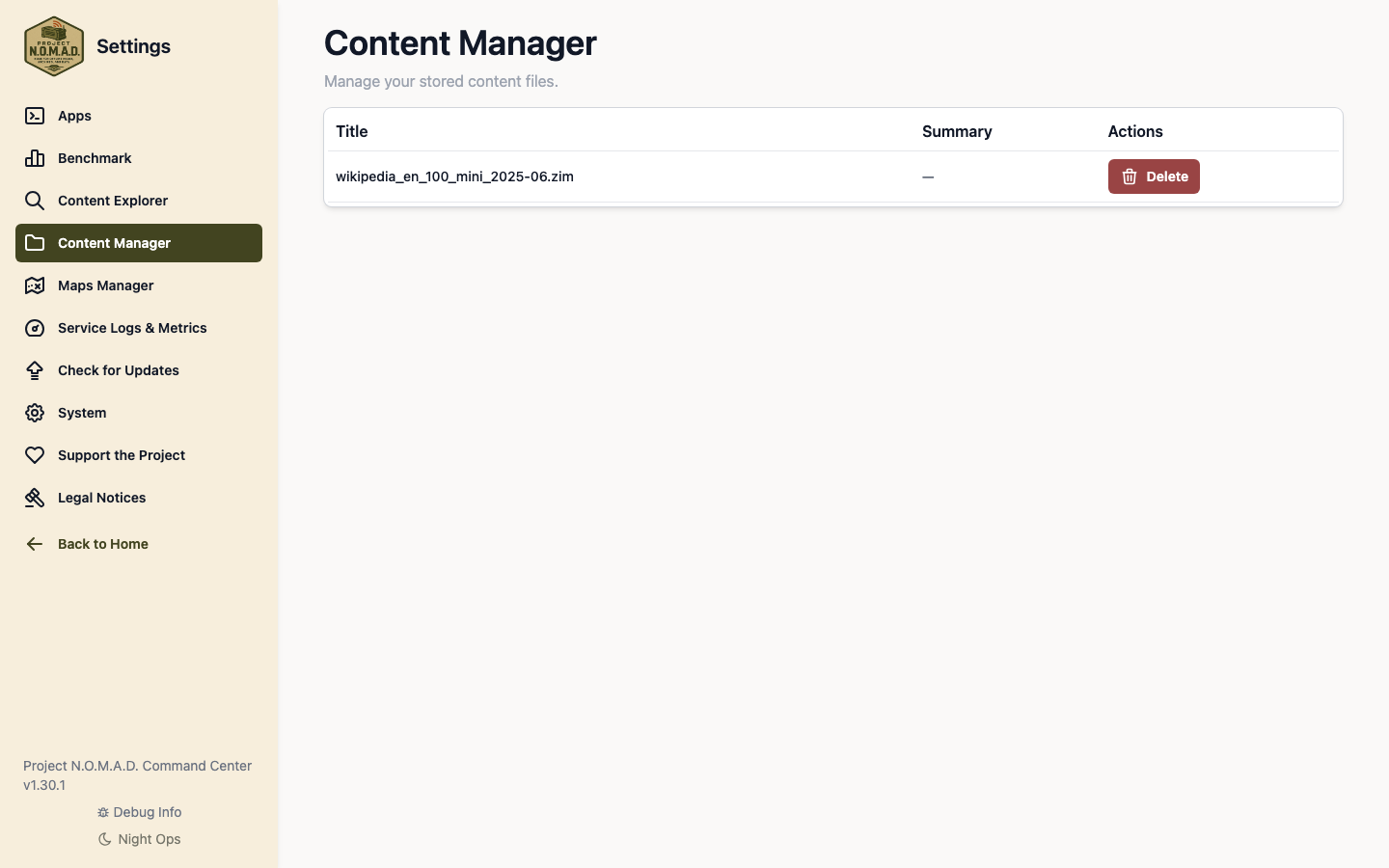
For Wikipedia, the Command Center’s ZIM settings panel lets you select which archives to download. The English Wikipedia is the obvious choice, but you can also grab medical references, Wiktionary, and other knowledge bases.
For maps, use the Maps section to download tiles for your region. Start with your state or province — you can always add more later.
That’s it. Once content is downloaded, unplug your ethernet cable. Everything still works.
Real-World Testing: What We Actually Measured
We didn’t just install it and call it done. We ran a full test suite — 21 tests across every major service. All 21 passed.
Here’s the performance data from our Mac mini M4:
AI Chat (Ollama)
- Inference speed: 113-127 tokens per second on a 7B quantized model
- That’s fast enough for natural conversation — responses feel instant, not sluggish
- Running entirely on the M4’s GPU cores, no external graphics card needed
Offline Wikipedia (Kiwix)
- Search latency: 311 milliseconds — from query to results, completely offline
- That’s faster than most cloud-based Wikipedia lookups over a typical broadband connection
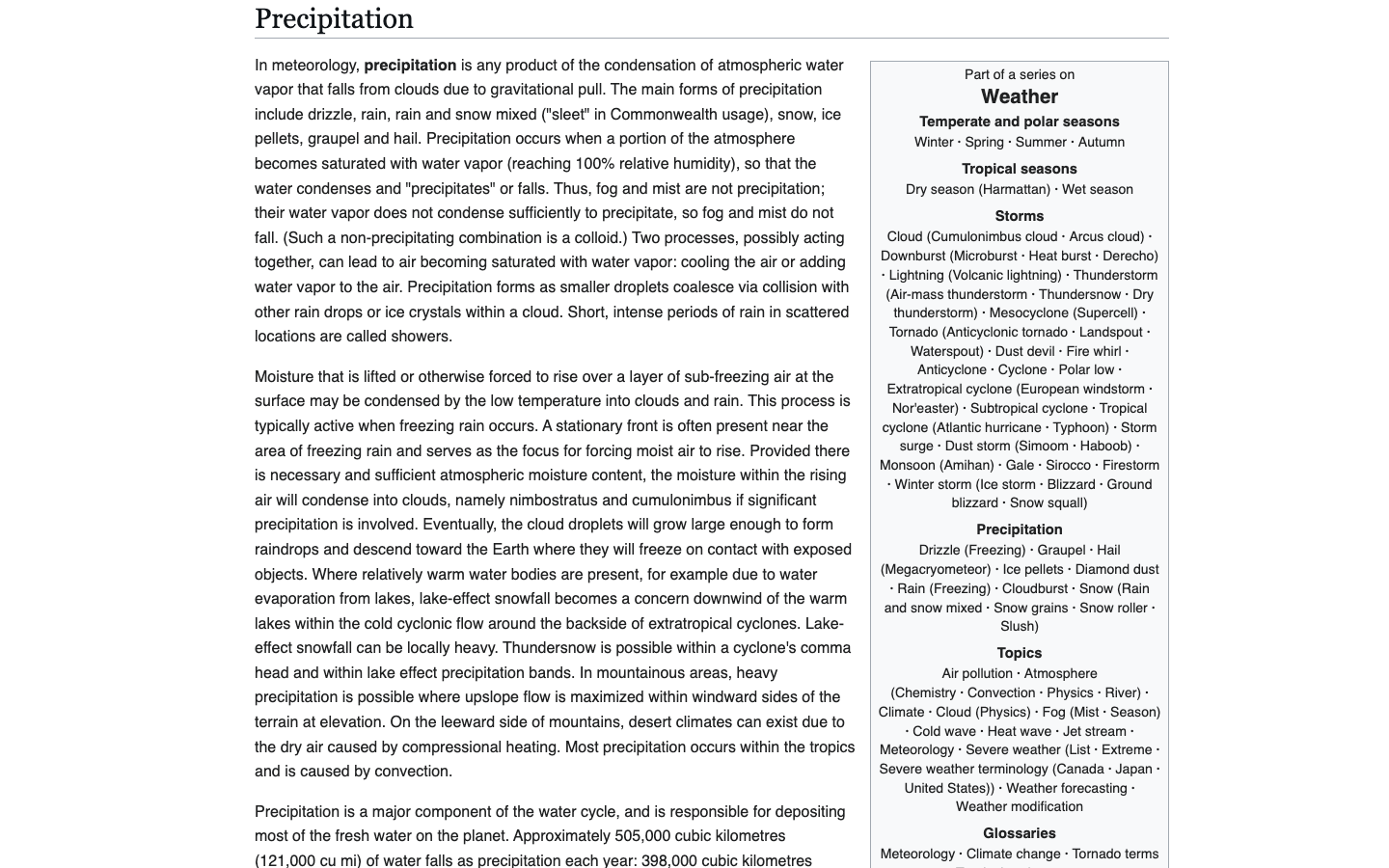
- Full article rendering with images, tables, and references intact
A note on Wikipedia completeness: The baseline Wikipedia archive we tested is a reduced version (medical references + core encyclopedia content, ~40 GB maximum). It’s enough for searching medical conditions, technical terms, historical facts, and reference material. However, it’s not the complete Wikipedia with every image and niche article. If you want the comprehensive Wikipedia with full image galleries and every article variant, expect to download a larger archive (80-100+ GB) and adjust your storage plans accordingly. The Command Center lets you select which level of completeness you want, so you can start small and expand as needed.
System Resources
- Total RAM usage: ~3.5 GB with Command Center, Ollama, and all six containers running
- That leaves over 12 GB free on a 16 GB M4 for other tasks
- Container count: 6 (Management, MySQL, Kiwix, CyberChef, FlatNotes, Dozzle)
CyberChef
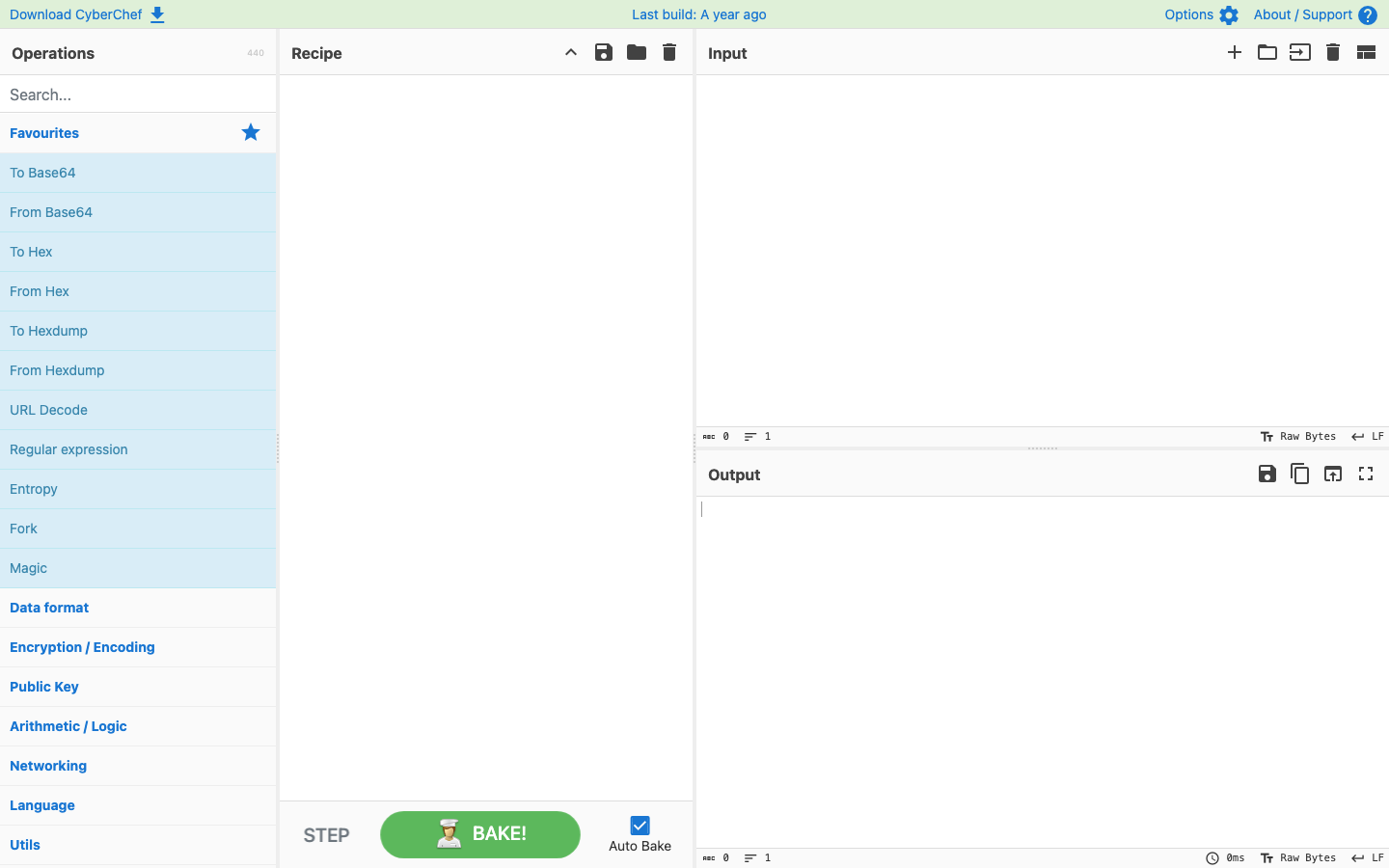
- Loaded and functional immediately
- Encryption and encoding recipes work as expected offline
FlatNotes
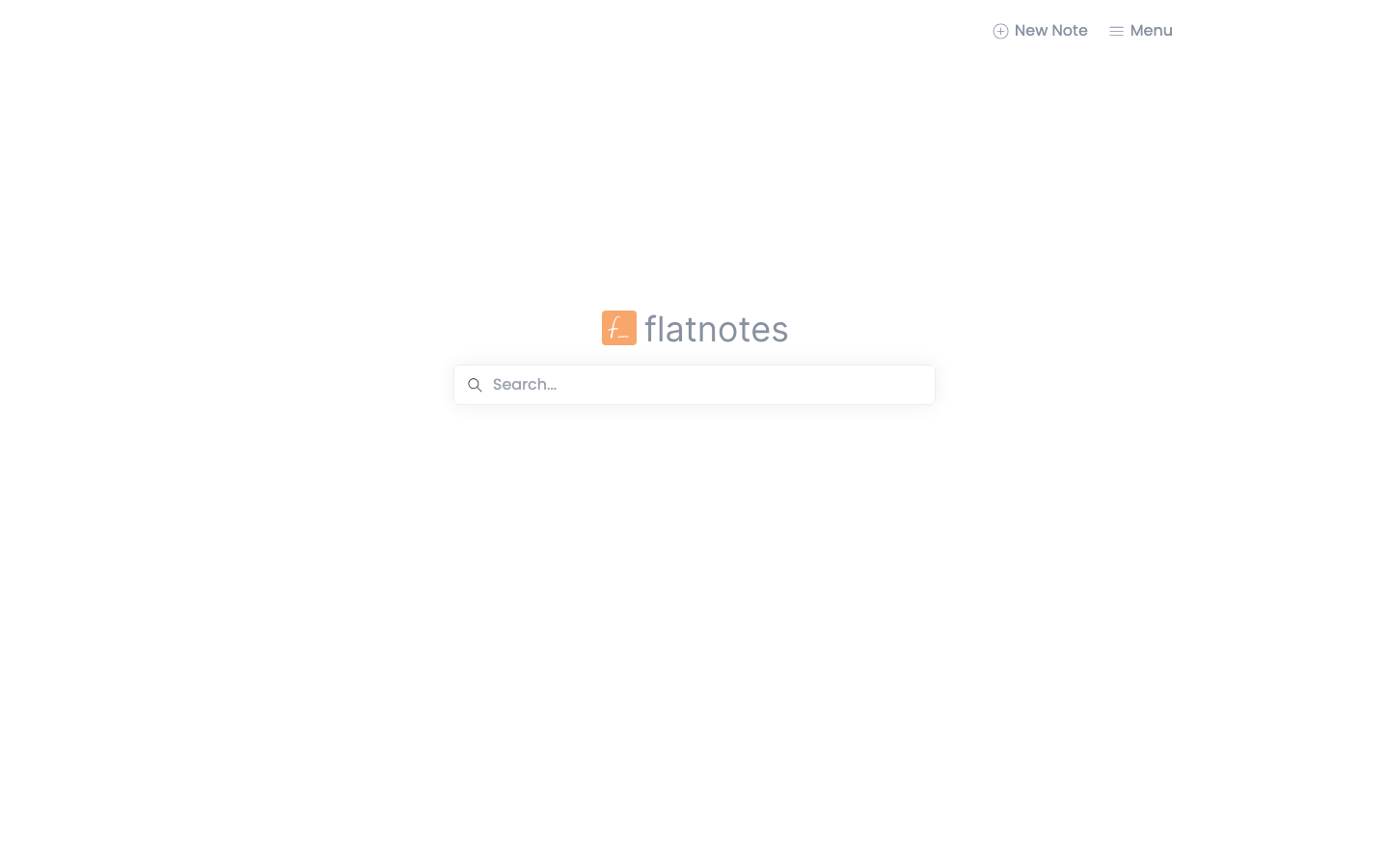
- Note creation, editing, and markdown rendering all working
- Clean, responsive interface
Dozzle (System Monitoring)
- Live container log streaming working
- Real-time health visibility into all running services
What About LM Studio Conflicts?
If you’re already running LM Studio on your M4 (as many of us are), you’ll want to be aware: both LM Studio and Ollama want GPU resources. They can coexist, but you’ll get best performance by running one at a time. Stop your LM Studio server before firing up N.O.M.A.D.’s AI chat, and vice versa.
Real-World Scenarios: When This Becomes Essential
Let’s move past the “cool project” phase and talk about actual situations where offline knowledge infrastructure matters.
Internet Outage (It Happens More Than You’d Think). Major ISPs report 1,000+ significant outages yearly. A severed fiber line can take out a region for hours or days. When that happens, every Wikipedia article, map, and medical reference you relied on is gone. Unless it’s sitting on your Mac.
Extended Power Grid Issues. Your Mac mini M4, a battery bank, and a small solar panel. Wikipedia, medical references, and an AI assistant running on 7 watts. During last year’s Texas grid event, people were trying to figure out water safety on pen and paper. You’re looking it up offline.
ISP Service Cuts or building a local communications network Outages. Whether it’s infrastructure failure, weather damage, or deliberate network restrictions — your knowledge base doesn’t care. It’s local. It works.
Off-Grid or Remote Living. No reliable internet at your homestead? Set up N.O.M.A.D. once when you’re in town with WiFi, bring it home, and you’ve got a knowledge server that runs indefinitely. Add a mesh network and every device in your household can access it.
Medical Emergency in Limited Connectivity. When you’re an hour from the ER and cell service is spotty, having offline medical references, drug interaction checkers, and first aid protocols available on your Mac is genuinely useful.
Homeschooling or Self-Directed Learning. Kolibri’s offline course library means education doesn’t depend on cloud subscriptions. Real curriculum, progress tracking, zero internet required.
Cost and Accessibility
Here’s the part that matters to most people:
Software cost: $0. N.O.M.A.D. is free and open-source under the Apache 2.0 license. No subscriptions. No premium tiers. No “free for personal use” asterisks.
Hardware cost: If you already own a Mac mini M4, your additional cost is zero. If you’re buying one, the base M4 starts at $499 — and it serves double duty as a regular desktop computer.
Compare that to dedicated NAS solutions ($300-800), purpose-built offline servers ($500+), or the ongoing cost of cloud subscriptions that stop working the moment your internet does.
Maintenance: Updates are handled through the built-in management tools. Backups are standard file copies — nothing proprietary.
Limitations Worth Knowing
We believe in honest reviews. Here’s what you should know:
- No built-in authentication. N.O.M.A.D. assumes it’s running on a trusted local network. Don’t expose it directly to the internet without adding your own security layer.
- Storage scales with content. The base install is ~25 GB, but if you download full Wikipedia archives, multiple map regions, and large AI models, you’ll want 250+ GB of storage.
- macOS port is community-maintained. The official project targets Linux. The macOS fork works well (we proved it), but it may lag behind on updates.
- AI models need RAM. Larger, more capable models (13B+) will push the limits of a 16 GB M4. Stick to 7B models for the best experience.
Your Knowledge Infrastructure Starts Now
The resilience mindset is fundamentally about one question: What if?
What if the internet goes down. What if your cloud subscriptions stop working. What if you can’t access the information you need when you need it.
We build resilience around food, water, energy, and shelter. We’re starting to think about health and security. But we rarely think about knowledge infrastructure — the systems that hold the information we need to solve problems.
Project N.O.M.A.D. on a Mac mini M4 (whether new or an old one you already own) gives you an offline library, an AI assistant, maps, medical references, educational courses, and a full data toolkit — all running on hardware that costs $500 or less, fits on a shelf, and sips power like a night light.
You need internet exactly once: to set it up. After that, it’s yours. No subscription. No cloud. No dependency on anyone else’s infrastructure.
Set it up this weekend. Download your content. Unplug the ethernet cable. And know that when everything else goes dark, your knowledge doesn’t.
What’s Next: Building on This
This article covers getting N.O.M.A.D. running on Mac hardware. But there’s more to explore:
- Running Offline AI for Specific Tasks — How to customize local LLMs for your specific needs (medical consultation, agricultural planning, technical problem-solving) without cloud APIs
- Building a Knowledge Base From Your Library — Feeding your N.O.M.A.D. instance with your own documents, manuals, and reference materials for truly personalized offline search
- Autonomous AI Operations Offline — What happens when your AI systems need to make decisions without internet? Skills, knowledge, and constraints to understand
Stay tuned for these deep-dives.
Project N.O.M.A.D. is free and open-source. Get started at projectnomad.us or grab the macOS fork from GitHub.
Related reading
 Tech & Digital Resilience
Self-Hosting Email: Own Your Digital Identity
A practical guide to self-hosting email — what it takes, what it costs, and whether it’s right for you. Honest trade-offs included.
 Tech & Digital Resilience
Local-First Home Automation: A Home Assistant Setup That Survives Internet Outages
When the AWS outage turned smart homes dumb, some households never noticed. The difference is architecture: a local-first Home Assistant setup that keeps working when the internet doesn’t.
 Tech & Digital Resilience
Pi-hole in a Weekend: Network-Wide Ad Blocking for Every Device You Own
Your smart TV is phoning home to ad servers, your phone apps are reporting to analytics endpoints — and neither can run an ad blocker. A Pi-hole fixes that at the network level for every device you own, in one evening, for less than a takeaway dinner.
Related reading

What to Download Before the Internet Goes Down: Building Your Offline Library
A curated download plan for your offline knowledge server: which Wikipedia packs, repair guides, and free libraries to grab first, with real file sizes and.
Who Should Actually Run a Local LLM in 2026 — and Who Should Keep Paying $20
The answer depends entirely on which of six readers you are. For most of them, the answer is no.
You Can Run AI Without the Cloud. Here’s What That Gets You — and What It Doesn’t.
Training-data lawsuits, preserved chat logs, models retired on two weeks' notice. There's a reasonable question underneath all of it: can you use this technology without …
Thanks for this. I had seen a video about NOMAD and my Mac mini (a month earlier than originally estimated by Apple). Excited to try this out.
This does not currently install on macos as following the instructions above. There are platform conflicts when pulling management containers. 9/5/26
Hi Wayne — thanks for flagging this, and you’re right. The management/admin container is published for linux/amd64 only; the upstream project builds its images on amd64 runners with no ARM variant, including the September 2 (v1.34.1) update. On Apple Silicon the fix is to let Docker pull it under emulation:
export DOCKER_DEFAULT_PLATFORM=linux/amd64in Terminal before the installer, then re-runsudo bash install_nomad.sh.The rest of the stack (MySQL, Redis, Kiwix, Dozzle, and the other services) ships native ARM images — only the admin/management container is x86. We’ve added a clarification to the article covering this.